Managing Baselines
Baselines are the foundation of regression testing. Learn how to record them from known-good builds, manage per-platform variants, and tune thresholds to eliminate noise.
What Is a Baseline and Why It Matters
A baseline is a snapshot of your project's performance at a known-good point in time. It captures aggregated stats (average, median, p95, p99, max, sample_count) for each tracked metric from a Gauntlet capture run.
When you later compare a new capture against the baseline, PerfGuard calculates deltas and flags any stat that exceeds your configured threshold. Without a baseline, there's nothing to compare against — you're flying blind.
Recording from a Known-Good Build
Choose a build that represents your target performance — typically a release milestone, or the last build before a known-problematic change. Run the Gauntlet capture, then record it as a baseline:
# Step 1: Run the capture
UnrealEditor YourProject.uproject -game \
    -gauntlet=PerfGuardGauntletController \
    -scenario=MainMenu_Flythrough \
    -csvprofile -RenderOffScreen -unattended -log

# Step 2: Record the baseline
python3 perfguard_cli.py baseline record MainMenu_Flythrough \
    --csv Saved/Profiling/CSV/Profile(20260115_103000).csv \
    --platform Linux \
    --warmup 60
:: Step 1: Run the capture
UnrealEditor-Cmd.exe YourProject.uproject -game ^
    -gauntlet=PerfGuardGauntletController ^
    -scenario=MainMenu_Flythrough ^
    -csvprofile -RenderOffScreen -unattended -log

:: Step 2: Record the baseline
python perfguard_cli.py baseline record MainMenu_Flythrough ^
    --csv Saved\Profiling\CSV\Profile(20260115_103000).csv ^
    --platform Win64 ^
    --warmup 60
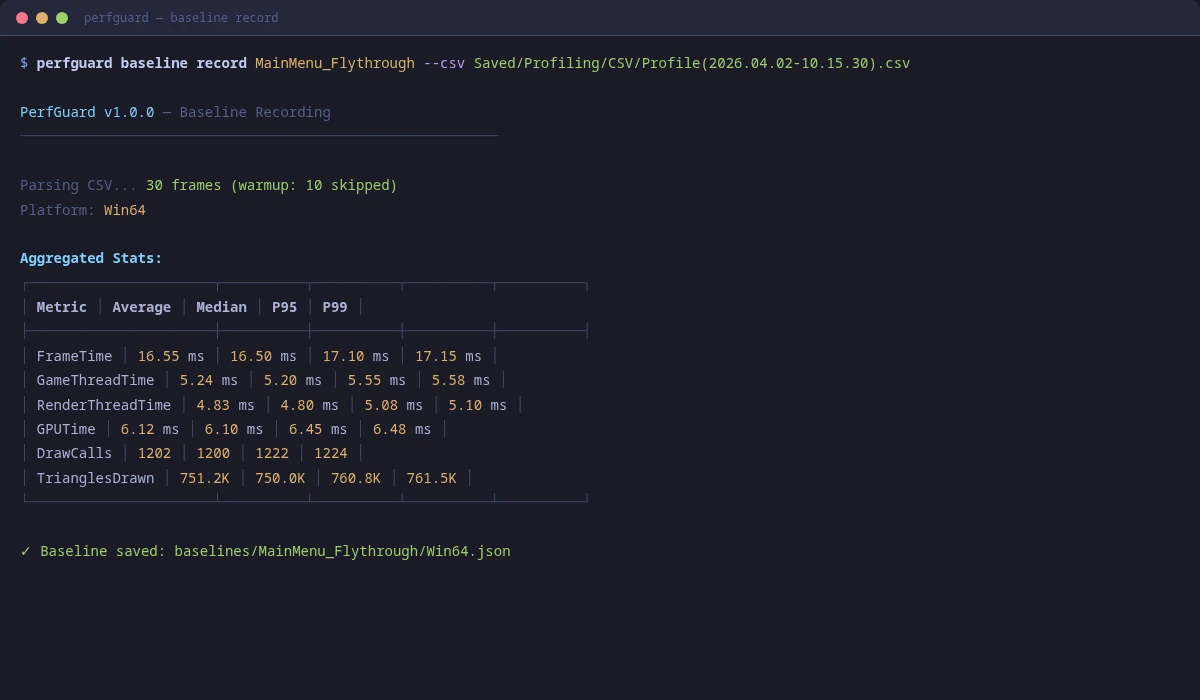
baseline record. PerfGuard takes the median across runs so a single thermal-throttled or cold-cache capture can't poison the baseline:
# Run the scenario 5 times, then:
perfguard baseline record MainMenu_Flythrough \
    --csv Profile(20260115_103000).csv \
    --csv Profile(20260115_103127).csv \
    --csv Profile(20260115_103245).csv \
    --csv Profile(20260115_103403).csv \
    --csv Profile(20260115_103521).csv
The CLI prints the per-run min/max alongside the median so you can spot outliers. The saved baseline gains a
runs_count field so reports show "median of 5 captures" at a glance. This is the single most effective fix for "my static project flaps FAIL/PASS every other run" — that symptom almost always traces back to a single-capture baseline locked to a lucky-low or unlucky-high value.
Understanding Baseline JSON Structure
Baselines are stored as JSON files in the baselines/ directory. Here's what the structure looks like:
{
  "scenario_name": "MainMenu_Flythrough",
  "platform": "Win64",
  "engine_version": "5.7.0",
  "source_revision": "a1b2c3d",
  "recorded_at_utc": "2026-01-15T10:35:00Z",
  "runs_count": 5,
  "stats": {
    "FrameTime": {
      "column": "FrameTime",
      "average": 14.23,
      "median": 13.89,
      "p95": 18.42,
      "p99": 20.11,
      "max": 22.67,
      "sample_count": 842
    },
    "GPUTime": { ... }
  }
}
The JSON is human-readable and version-control friendly. Each stat stores multiple aggregations so you can compare against whichever is most meaningful for your use case.
Per-Platform Baselines
Performance varies significantly between platforms. A frame that takes 14ms on Win64 might take 20ms on Linux with a different GPU driver. PerfGuard supports per-platform baselines so you can maintain separate reference points.
# Record Win64 baseline
python3 perfguard_cli.py baseline record MyScenario --csv win64_capture.csv --platform Win64

# Record Linux baseline
python3 perfguard_cli.py baseline record MyScenario --csv linux_capture.csv --platform Linux
:: Record Win64 baseline
python perfguard_cli.py baseline record MyScenario --csv win64_capture.csv --platform Win64

:: Record Linux baseline
python perfguard_cli.py baseline record MyScenario --csv linux_capture.csv --platform Linux
When comparing, PerfGuard automatically selects the baseline matching the current platform. You can also specify the platform explicitly.
Exporting Baselines for Version Control
Export all baselines to a directory for committing to your repository. This ensures the entire team shares the same reference data.
python3 perfguard_cli.py baseline export ./baselines-export/

# Then commit to version control
git add baselines-export/
git commit -m "Update performance baselines for v1.0"
python perfguard_cli.py baseline export .\baselines-export\

:: Then commit to version control
git add baselines-export\
git commit -m "Update performance baselines for v1.0"
Importing Baselines from Shared Storage
Import baselines from a directory — whether pulled from version control, downloaded from a shared drive, or synced from a build farm.
python3 perfguard_cli.py baseline import ./baselines-export/
python perfguard_cli.py baseline import .\baselines-export\
This copies the JSON baseline files into PerfGuard's working baselines directory, ready for comparison.
Listing and Inspecting Baselines
See what baselines are currently available:
python3 perfguard_cli.py baseline list

# Output:
# MainMenu_Flythrough  Win64  2026-01-15  a1b2c3d  842 frames
# Arena_CombatView     Win64  2026-01-15  a1b2c3d  1204 frames
# OpenWorld_Drive      Linux  2026-01-14  e5f6g7h  2031 frames
python perfguard_cli.py baseline list

:: Output:
:: MainMenu_Flythrough  Win64  2026-01-15  a1b2c3d  842 frames
:: Arena_CombatView     Win64  2026-01-15  a1b2c3d  1204 frames
:: OpenWorld_Drive      Linux  2026-01-14  e5f6g7h  2031 frames
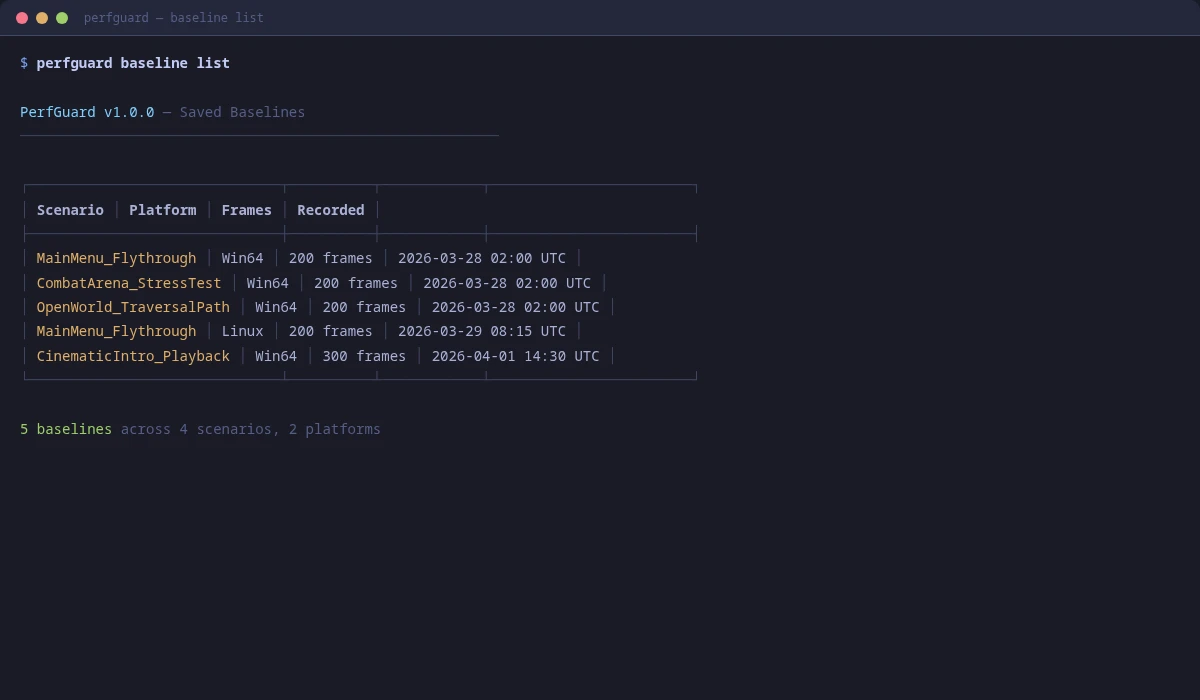
You can also open the JSON files directly to inspect individual stat values or verify the correct revision was captured.
Threshold Configuration
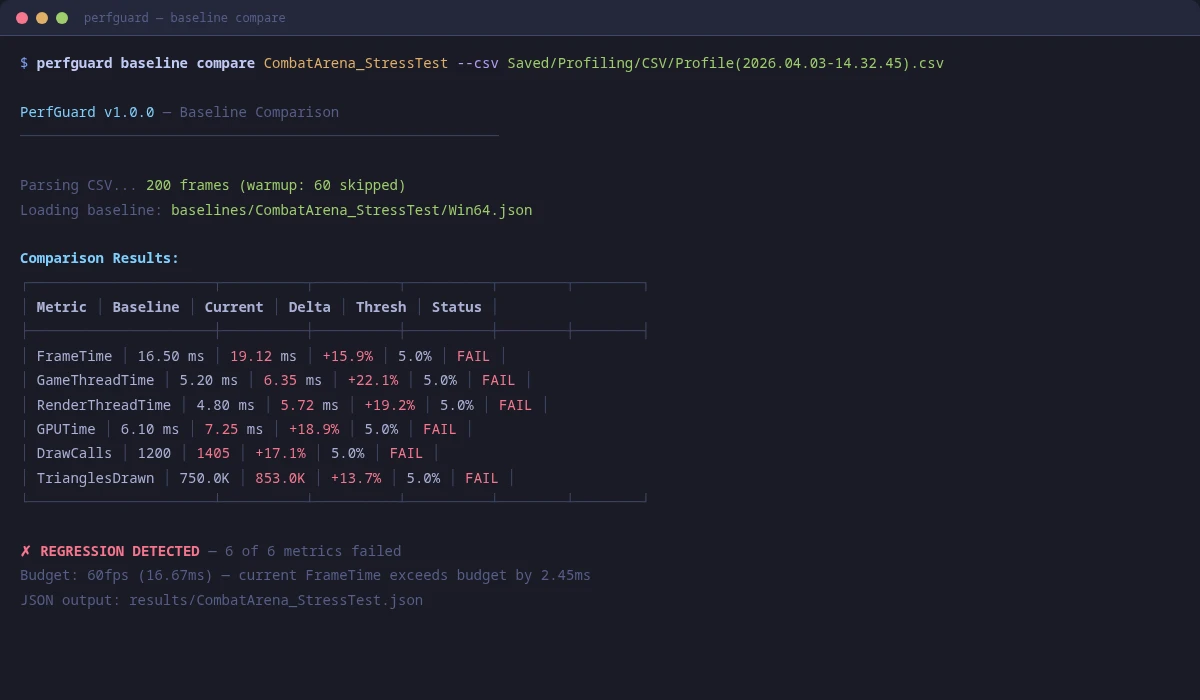
Thresholds determine how much a stat can regress before PerfGuard flags it. There are two types:
- Percentage threshold — e.g., 5% means a stat can be up to 5% worse than baseline
- Absolute threshold — e.g., 2.0ms means the stat can be up to 2ms worse
python3 perfguard_cli.py baseline compare MyScenario \
    --csv new_capture.csv \
    --threshold-percent 5.0  # 5% regression tolerance
python perfguard_cli.py baseline compare MyScenario ^
    --csv new_capture.csv ^
    --threshold-percent 5.0  :: 5% regression tolerance
Budget Presets
Budget presets let you set pass/fail based on target frame rates. If the mean frame time exceeds the budget, the comparison fails regardless of regression percentage.
60fps— 16.67ms frame budget30fps— 33.33ms frame budgetvr90fps— 11.11ms frame budget
python3 perfguard_cli.py baseline compare MyScenario \
    --csv new_capture.csv \
    --budget 60fps  # Fail if mean FrameTime > 16.67ms
python perfguard_cli.py baseline compare MyScenario ^
    --csv new_capture.csv ^
    --budget 60fps  :: Fail if mean FrameTime > 16.67ms
When to Re-Record Baselines
Baselines should be updated when the performance change is intentional and expected:
- After optimization work — Update to capture the new (better) performance level
- After feature additions — New visual features legitimately cost performance; re-baseline to the new normal
- After engine upgrades — UE version changes can shift baseline numbers
- After hardware changes — New CI machines need new baselines
- After content changes — Large asset additions that change scene complexity