Blueprint API
Use PerfGuard entirely from Blueprint — run performance captures, display live frame times, automate scenarios, and manage baselines without writing any C++ or Python.
Accessing the Subsystem
PerfGuard exposes its capture workflow through a GameInstance Subsystem. To access it from any Blueprint, use the standard UE5 subsystem pattern:
Get Game Instance → Get Subsystem (class: PerfGuardSubsystem)
    → Store as variable "PerfGuard"
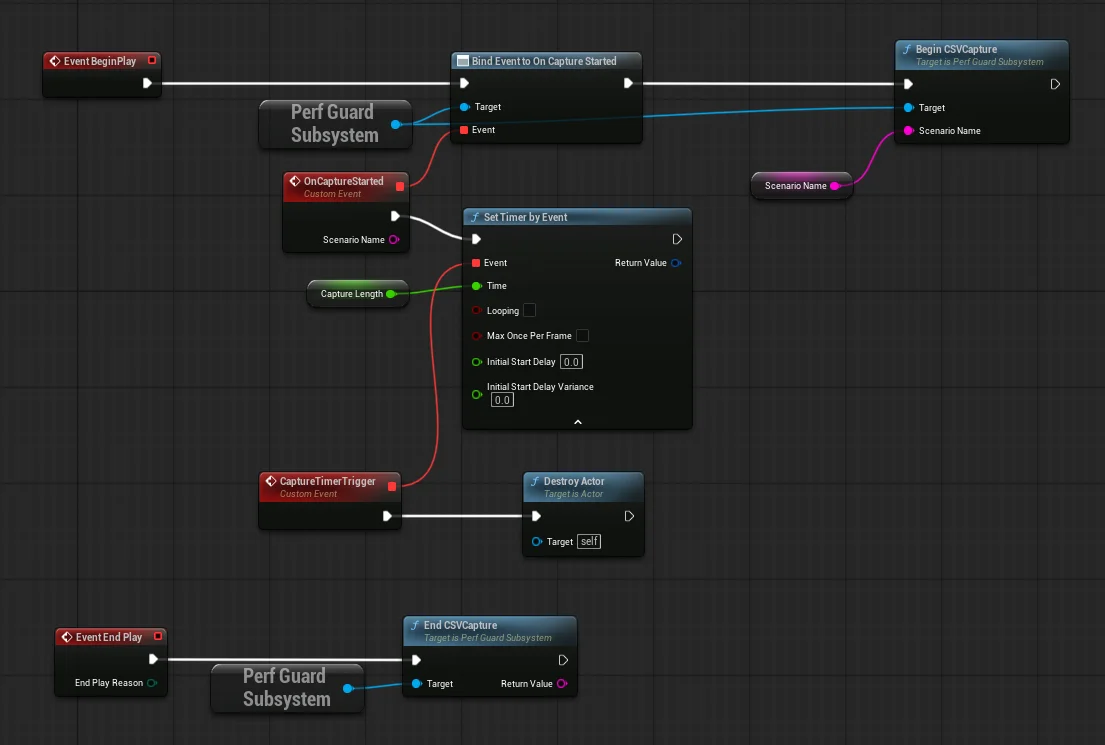
Store the result in a variable for reuse throughout your Blueprint. The subsystem is available in any game mode — PIE, standalone, packaged builds, and Gauntlet runs.
StartSequencePlayback return false if the sequence fails to load, and EndCSVCapture returns an empty string if capture was not active. Guard against these in your graphs.
One-Button Capture
The simplest Blueprint workflow: press a key to start a timed CSV capture, then print the output path. Add a Key Press event (F9) to your Level Blueprint or Player Controller.
Event F9
  |
  +-- Get Game Instance → Get Subsystem (PerfGuardSubsystem) → Store as "PerfGuard"
  |
  +-- PerfGuard → Begin CSV Capture (ScenarioName: "MyTest")
  |
  +-- Set Timer by Event (10.0 seconds) → Custom Event "StopCapture"
  |
  +-- [StopCapture fires]
       |
       +-- PerfGuard → End CSV Capture → Store return as "CSVPath"
       |
       +-- Print String (CSVPath)
What this does:
1. Pressing F9 starts the UE CSV profiler.
2. After 10 seconds, the timer fires and stops the profiler.
3. The CSV file path is printed on screen — pass it to perfguard baseline record to create a baseline.
Capture with Warmup and Events
This example uses all four PerfGuard delegates to build a full capture lifecycle with warmup countdown, live status, and completion handling. Create an Actor Blueprint with a Text Render component for the display.
Event BeginPlay
  |
  +-- Get Game Instance → Get Subsystem (PerfGuardSubsystem) → Store as "PerfGuard"
  |
  +-- Bind Event to OnWarmupProgress (PerfGuard)
  |     +-- Custom Event "WarmupTick" (FramesRemaining: int, TotalWarmupFrames: int)
  |           +-- Set Text: "Warmup: {FramesRemaining}/{TotalWarmupFrames}"
  |
  +-- Bind Event to OnCaptureStarted (PerfGuard)
  |     +-- Custom Event "CaptureStarted" (ScenarioName: String)
  |           +-- Set Text: "Capturing: {ScenarioName}..."
  |
  +-- Bind Event to OnCaptureComplete (PerfGuard)
  |     +-- Custom Event "CaptureDone" (ScenarioName: String, CSVPath: String, bSuccess: bool)
  |           +-- Branch on bSuccess
  |           +-- True  → Set Text: "Done! Saved to {CSVPath}"
  |           +-- False → Set Text: "Capture failed"
  |
  +-- Bind Event to OnFrameCaptured (PerfGuard)
        +-- Custom Event "FrameTick" (FrameTimeMs: float, SequencePosition: float, FrameIndex: int)
              +-- Set Text: "Frame {FrameIndex}: {FrameTimeMs} ms"
Key points:
OnWarmupProgress fires each frame during warmup — use it for countdown UI.
OnCaptureStarted fires once when measurement begins (after warmup ends).
OnFrameCaptured fires every frame during capture — use for live performance displays.
OnCaptureComplete fires once when capture ends, with the CSV path and success flag.
Live Frame Time Display
Build a real-time frame time overlay using OnFrameCaptured. Create a UMG Widget Blueprint with a progress bar and text block.
Event Construct
  |
  +-- Get Game Instance → Get Subsystem (PerfGuardSubsystem) → Store as "PerfGuard"
  |
  +-- Bind Event to OnFrameCaptured (PerfGuard)
        +-- Custom Event "OnFrame" (FrameTimeMs: float, SequencePosition: float, FrameIndex: int)
              |
              +-- Add FrameTimeMs to Array "FrameHistory" // keep last 120 entries
              |
              +-- Calculate average of FrameHistory → Store as "AvgMs"
              |
              +-- Set Progress Bar percent: Clamp(FrameTimeMs / 33.33, 0, 1)
              |     // green at 0%, red at 100% = over 33ms budget
              |
              +-- Set Text: "{AvgMs} ms avg ({1000/AvgMs} FPS)"
The progress bar fills toward red as frame time approaches the 33ms budget (30 FPS). For a 60 FPS target, divide by 16.67 instead. The rolling 120-frame average smooths out momentary spikes so the display remains readable.
Automated Scenario Runner
Run a scenario entirely from Blueprint: find it by name, play the Level Sequence, capture CSV during playback, and stop when the sequence ends.
Custom Event "RunScenario" (ScenarioName: String)
  |
  +-- PerfGuard → Find Scenario By Name (ScenarioName) → Store as "Scenario"
  |
  +-- Branch: Is Scenario Valid?
  |     +-- False → Print String: "Scenario not found: {ScenarioName}" → Return
  |
  +-- PerfGuard → Begin CSV Capture (ScenarioName)
  |
  +-- PerfGuard → Start Sequence Playback (Scenario, Get World) → Store as "bStarted"
  |
  +-- Branch: bStarted?
  |     +-- False → PerfGuard → End CSV Capture → Print "Sequence failed" → Return
  |
  +-- Set Timer by Event (0.5s, Looping) → Custom Event "PollSequence"
       |
       +-- PerfGuard → Is Sequence Playing? → Branch
       |
       +-- False (sequence finished):
            |
            +-- Clear Timer
            |
            +-- PerfGuard → End CSV Capture → Store as "CSVPath"
            |
            +-- Print String: "Capture complete: {CSVPath}"
Baseline Round-Trip
Save and load baselines from Blueprint for custom comparison workflows. This lets you build in-game UI for recording golden baselines and comparing future runs.
Custom Event "SaveBaseline" (Baseline: PerfBaseline)
  |
  +-- PerfGuard → Get Default Baselines Dir → Store as "Dir"
  |
  +-- PerfGuard → Save Baseline To Json (Baseline, Dir) → Branch on return
       +-- True  → Print "Baseline saved"
       +-- False → Print "Save failed"
Custom Event "LoadBaseline" (FilePath: String)
  |
  +-- Make local variable: OutBaseline (type: PerfBaseline)
  |
  +-- PerfGuard → Load Baseline From Json (FilePath, OutBaseline) → Branch
       +-- True  → Use OutBaseline for comparison
       +-- False → Print "Load failed"
Baselines are stored as JSON in Saved/PerfGuard/Baselines/ by default. The GetDefaultBaselinesDir and GetDefaultResultsDir functions return the configured paths, so your Blueprint stays portable across projects.
Function Reference
Complete reference for all BlueprintCallable functions on UPerfGuardSubsystem.
Scenario Execution
| Function | Returns | Description |
|---|---|---|
FindScenarioByName | UPerfScenario* | Look up a scenario asset by its ScenarioName property |
StartSequencePlayback | bool | Begin playing the scenario's Level Sequence. Returns false if sequence fails to load |
StopSequencePlayback | void | Stop the active sequence |
IsSequencePlaying | bool | True if a Level Sequence is currently playing |
GetSequenceDuration | float | Total sequence length in seconds. 0 if nothing playing |
GetSequencePosition | float | Current playback position in seconds. -1 if not playing |
IsSequenceReady | bool | True when the sequence player exists and is seeked to frame 0 but not yet playing. Gates warmup in paused-during-warmup mode |
StartReplayPlayback | bool | Begin playing a demo replay file. Map must already be loaded |
StopReplayPlayback | void | Stop the active replay |
IsReplayPlaying | bool | True if a replay is currently playing |
GetReplayDuration | float | Read replay duration from file header. Returns 0 on failure |
GetDefaultReplayDir | FString | Absolute path to the configured replay directory |
CSV Capture
| Function | Returns | Description |
|---|---|---|
BeginCSVCapture | void | Start the CSV profiler. Fires OnCaptureStarted |
EndCSVCapture | FString | Stop, wait for the async flush, copy the result, and return the CSV path. Fires OnCaptureComplete. Equivalent to StopCSVCapture + bounded wait + ProcessCSVCapture; retained for existing callers |
StopCSVCapture | void | Stop the profiler only — does not copy the file or fire OnCaptureComplete. Pair with ProcessCSVCapture when you need to wait for the async flush across frames |
IsCSVWriteReady | bool | True once the written CSV exists and its size has stayed > 0 and unchanged across two polls (the flush has settled). Poll between StopCSVCapture and ProcessCSVCapture |
ProcessCSVCapture | FString | Wait for the flush, copy the output to the results directory, fire OnCaptureComplete, and return the path (empty on failure) |
IsCapturing | bool | True if a CSV capture is active |
Insights Trace
| Function | Returns | Description |
|---|---|---|
BeginTraceCapture | void | Start an Insights trace recording with specified channels |
EndTraceCapture | FString | Stop the trace and return the .utrace file path |
IsTracing | bool | True if a trace is being recorded |
Capture Health
| Function | Returns | Description |
|---|---|---|
RecordCaptureFrame | void | Record one frame during capture. Call each tick. Fires OnFrameCaptured |
RecordWarmupFrame | void | Record one warmup frame for stability analysis |
GetCaptureHealthReport | FCaptureHealthReport | Get capture quality metrics after a run |
Baseline I/O
| Function | Returns | Description |
|---|---|---|
SaveBaselineToJson | bool | Write a baseline to disk as JSON |
LoadBaselineFromJson | bool | Read a baseline from disk into an output struct |
GetDefaultBaselinesDir | FString | Path to Saved/PerfGuard/Baselines/ |
GetDefaultResultsDir | FString | Path to Saved/PerfGuard/Results/ |
Events Reference
PerfGuard exposes four multicast delegates. Bind these in your Event Graph to react to capture lifecycle events.
| Event | Parameters | When It Fires |
|---|---|---|
OnCaptureStarted |
ScenarioName (String) |
CSV capture begins (after warmup completes) |
OnCaptureComplete |
ScenarioName (String), CSVPath (String), bSuccess (bool) |
CSV capture ends. CSVPath is empty when bSuccess is false |
OnFrameCaptured |
FrameTimeMs (float), SequencePosition (float), FrameIndex (int) |
Every frame during active capture |
OnWarmupProgress |
FramesRemaining (int), TotalWarmupFrames (int) |
Each warmup frame before capture starts |
All four delegates are multicast, so multiple Blueprints can bind to them simultaneously. For example, one Actor handles the capture logic while a separate UMG widget displays live frame times.